Deploy Mail Server on Debian 12 with Postfix, Dovecot, MySQL, and RoundCube
In this tutorial, we will learn how to deploy a Mail Server on Debian 12 with Postfix, Dovecot, MySQL, and RoundCube.
A mail server can be defined as a program or software that handles how emails are received, sent and managed in an organization. This is crucial as it determines how communication happens on your network. Whenever an email is sent, it goes through several servers before it gets to the destination. However, this process is so fast and you might not realize the complexity involved.
Mail servers are split into two main categories. These are:
- Hosted Mail Servers: They are normally provided by third-party service providers that offer everything required and you do not need to worry about the server setup, maintenance, or security. Examples of such mail servers are Zoho Mail, Google Workspace (formerly G Suite), Microsoft 365 (formerly Office 365), FastMail etc
- Self-Hosted Mail Servers: These are set up and managed by the organization and users have full control over the server configuration, software choices, and security. These require technical expertise to set up and maintain. Examples include Microsoft Exchange Server, Postfix, Exim, Dovecot, Cyrus IMAP, Zimbra etc.
In this guide, we will learn how to deploy a self-hosted mail server with Postfix, Dovecot, MySQL, and RoundCube. All the components here will play their crucial role as explained below:
- Postfix: This is a powerful, versatile, free and open-source mail transfer agent (MTA). It is used to relay electronic mail between servers over the internet. Postfix is highly configurable and it offers exceptional flexibility, allowing users to tailor its behaviour to suit their specific needs and requirements.
- Dovecot: This open-source email server is tailored for Linux/UNIX-like systems and serves as a secure IMAP and POP3 server. Designed with a primary focus on security, it functions as a Local Delivery Agent (LDA). Its main role involves receiving emails from Postfix or other MTA/mail server software and securely storing them for users.
- Roundcube: A user-friendly interface is essential for accessing and managing emails. Roundcube is a highly favoured solution that meets these needs seamlessly. As a browser-based multilingual IMAP client, Roundcube offers an application-like user interface, making it intuitive and familiar to users. It offers a full suite of email client functionalities, including an address book, easy folder manipulation, spell-checking, efficient message searching, and robust MIME support. With Roundcube, users enjoy a hassle-free and feature-rich email experience, making it an ideal choice for email management.
Prerequisites
For this guide to work, you need the following:
- Fully Qualified Domain Name (FQDN)
- Create A and MX Records for your Domain in a Public Domain Name Server
Start by updating your system:
sudo apt update && sudo apt upgrade -ySet the hostname:
sudo hostnamectl set-hostname mail.csuhaj.euReplace mail.csuhaj.eu with your own domain name.
You need to map this hostname to /etc/hosts:
$sudo vim /etc/hosts127.0.0.1 mail.csuhaj.eu
Verify the changes:
$hostnamectlStatic hostname: mail.csuhaj.eu....
1. Install Postfix, Apache and PHP
We will start by installing the required packages for this setup. Here, we will install Postfix, Apache and PHP
sudo apt-get install postfix postfix-mysql vim apache2 curlProceed as shown:
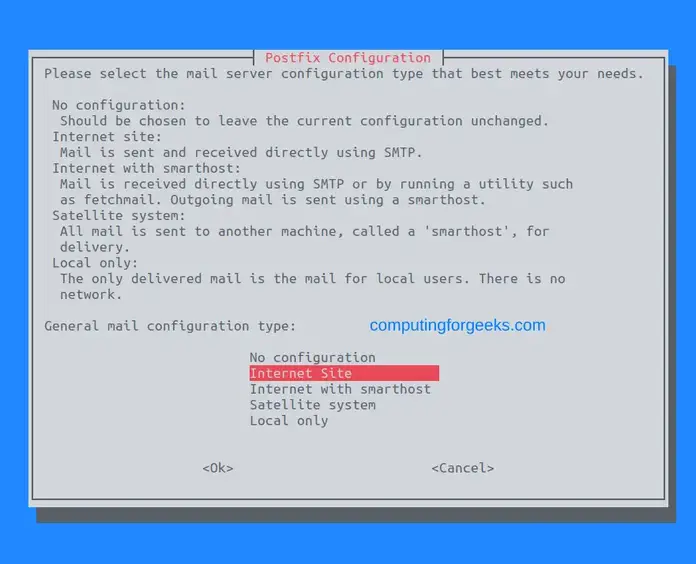
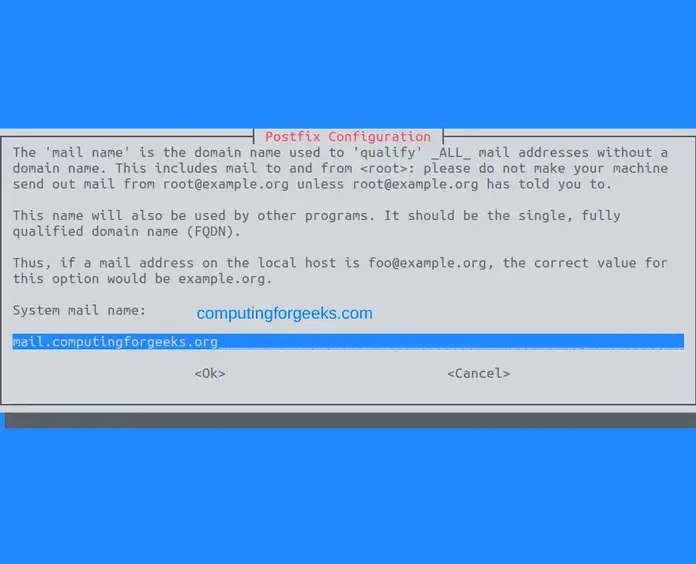
Provide the hostname:
Install PHP and all the required extensions:
sudo apt install php php-{pear,cgi,common,curl,gmp,fpm,mbstring,gd,bcmath,json,xml,fpm,intl,zip} php8.2-{gettext,mysql} -yCheck the installed PHP version:
$php --versionPHP 8.2.7 (cli) (built: Jun 9 2023 19:37:27) (NTS) Copyright (c) The PHP Group Zend Engine v4.2.7, Copyright (c) Zend Technologies with Zend OPcache v8.2.7, Copyright (c), by Zend Technologies
2. Generate SSL Certificate for your Domain
Before we start, we need to have SSL certs for the domain name. Here, we will use Let’sEncrypt to get free trusted SSL certs for the domain name.
ensure the required package has been installed:
sudo apt install certbotThen generate the SSL certs:

sudo certbot certonly --standaloneProceed as shown, remember to replace your domain name correctly:
Saving debug log to /var/log/letsencrypt/letsencrypt.log Enter email address (used for urgent renewal and security notices) (Enter 'c' to cancel):admcsl@csuhaj.eu- - - - - - - - - - - - - - - - - - - - - - - - - - - - - - - - - - - - - - - - Please read the Terms of Service at https://letsencrypt.org/documents/LE-SA-v1.3-September-21-2022.pdf. You must agree in order to register with the ACME server. Do you agree? - - - - - - - - - - - - - - - - - - - - - - - - - - - - - - - - - - - - - - - - (Y)es/(N)o:y- - - - - - - - - - - - - - - - - - - - - - - - - - - - - - - - - - - - - - - - Would you be willing, once your first certificate is successfully issued, to share your email address with the Electronic Frontier Foundation, a founding partner of the Let's Encrypt project and the non-profit organization that develops Certbot? We'd like to send you email about our work encrypting the web, EFF news, campaigns, and ways to support digital freedom. - - - - - - - - - - - - - - - - - - - - - - - - - - - - - - - - - - - - - - - - (Y)es/(N)o:yAccount registered. Please enter the domain name(s) you would like on your certificate (comma and/or space separated) (Enter 'c' to cancel):mail.csuhaj.euRequesting a certificate for mail.csuhaj.euSuccessfully received certificate. Certificate is saved at: /etc/letsencrypt/live/mail.csuhaj.eu/fullchain.pem Key is saved at: /etc/letsencrypt/live/mail.csuhaj.eu/privkey.pem This certificate expires on 2023-12-30. These files will be updated when the certificate renews. Certbot has set up a scheduled task to automatically renew this certificate in the background.
Create a directory with the required permissions for the certs:
sudo mkdir /etc/postfix/ssl
sudo chmod -R 775 /etc/postfix/ssl
Copy the generated certs to the directory:
sudo cp /etc/letsencrypt/live/mail.csuhaj.eu/fullchain.pem /etc/postfix/ssl
sudo cp /etc/letsencrypt/live/mail.csuhaj.eu/privkey.pem /etc/postfix/ssl
3. Install and Configure the Database
When setting up a database for the email server, you can use MySQL or MariaDB to store the important data for Postfix and Roundcube.
To install MariaDB on Debian 12, we will issue the command:
sudo apt install mariadb-serverEnsure the service has been started and enabled.
sudo systemctl enable --now mariadbSceure your MariaDB installation.
$ sudo mysql_secure_installation
....
Enter current password for root (enter for none): Just press Enter
......
Switch to unix_socket authentication [Y/n] Y
.....
Change the root password? [Y/n] Y
New password:  New-root-password
Re-enter new password: Re-enter New-root-password
....
Remove anonymous users? [Y/n] Y
....
Disallow root login remotely? [Y/n] Y
.....
Remove test database and access to it? [Y/n] Y
......
Reload privilege tables now? [Y/n] Y
...
Thanks for using MariaDB!
Log in using the root user and password created above:
mysql -u root -pCreate a database and user for Roundcube:
create database roundcube;
grant all on roundcube.* to roundcube_admin@localhost identified by 'StrongPassw0rd';
flush privileges;
Create the required database and user for Postfix:
create database postfix_accounts;
grant all on postfix_accounts.* to postfix_admin@localhost identified by 'StrongPassw0rd';
flush privileges;
Create a table in the database to store domains:
CREATE TABLE `postfix_accounts`.`domains_table` ( `DomainId` INT NOT NULL AUTO_INCREMENT , `DomainName` VARCHAR(50) NOT NULL , PRIMARY KEY (`DomainId`)) ENGINE = InnoDB;Create another table to store the user accounts:
CREATE TABLE `postfix_accounts`.`accounts_table` (
    `AccountId` INT NOT NULL AUTO_INCREMENT,
    `DomainId` INT NOT NULL,
    `password` VARCHAR(300) NOT NULL,
    `Email` VARCHAR(100) NOT NULL,
    PRIMARY KEY (`AccountId`),
    UNIQUE KEY `Email` (`Email`),
    FOREIGN KEY (DomainId) REFERENCES domains_table(DomainId) ON DELETE CASCADE
) ENGINE = InnoDB;
Also, create a table to store email alias data
CREATE TABLE `postfix_accounts`.`alias_table` (
    `AliasId` INT NOT NULL AUTO_INCREMENT,
    `DomainId` INT NOT NULL,
    `Source` varchar(100) NOT NULL,
    `Destination` varchar(100) NOT NULL,
    PRIMARY KEY (`AliasId`),
    FOREIGN KEY (DomainId) REFERENCES domains_table(DomainId) ON DELETE CASCADE
) ENGINE = InnoDB;
In the created accounts table we will add some accounts and aliases.
INSERT INTO `postfix_accounts`.`domains_table` (DomainName) VALUES ('csuhaj.eu');
INSERT INTO `postfix_accounts`.`accounts_table` (DomainId, password, Email) VALUES (1, ENCRYPT('Password', CONCAT('$6$', SUBSTRING(SHA(RAND()), -16))), 'tech@csuhaj.eu');
INSERT INTO `postfix_accounts`.`accounts_table` (DomainId, password, Email) VALUES (1, ENCRYPT('Password', CONCAT('$6$', SUBSTRING(SHA(RAND()), -16))), 'tesztelek@csuhaj.eu');
INSERT INTO `postfix_accounts`.`alias_table` (DomainId, Source, Destination) VALUES (1, 'talktous@csuhaj.eu', 'sales@csuhaj.eu');
Remember to use your desired postfix_admin user and passwords. Exit the shell:
MariaDB [(none)]> exit
Bye
4. Configure Postfix MTA
We need to make some modifications to Postfix to relay the emails as desired. Open the master config file:
sudo vim /etc/postfix/master.cfUncomment the below lines:
......
submission inet n       -       n       -       -       smtpd
  -o syslog_name=postfix/submission
  -o smtpd_tls_security_level=encrypt   ## Comment this if you have no SSL(not recommended)
  -o smtpd_tls_auth_only=yes            ## Comment this if you have no SSL(not recommended)
  -o smtpd_sasl_auth_enable=yes
  -o smtpd_recipient_restrictions=permit_sasl_authenticated,reject
  -o milter_macro_daemon_name=ORIGINATING
  -o smtpd_reject_unlisted_recipient=no
....
In the file add the below lines at the bottom for Dovecot:
dovecot   unix  -       n       n       -       -       pipe
    flags=DRhu user=vmail:vmail argv=/usr/lib/dovecot/deliver -f ${sender} -d ${recipient}
Once the changes have been made, save the file and open the main Postfix config:
sudo vim /etc/postfix/main.cfIn this file, we will make several modifications. First, set the hostname:
myhostname = mail.csuhaj.eu Uncomment these lines:
myorigin = $myhostname
inet_interfaces = all
inet_protocols = all
mydestination = $myhostname, localhost.computingforgeeks.org, localhost
smtpd_recipient_restrictions = permit_mynetworks
home_mailbox = Maildir/
You also need to add the below lines some of which define the SSL certs and the path. If you don’t have SSL certs, comment out the specific lines
config_directory = /etc/postfix
dovecot_destination_recipient_limit = 1
message_size_limit = 4194304
smtpd_tls_cert_file = /etc/postfix/ssl/fullchain.pem  ##SSL Cert
smtpd_tls_key_file = /etc/postfix/ssl/privkey.pem       ##SSL Key
smtpd_use_tls=yes
smtpd_tls_security_level = may

smtpd_tls_session_cache_database = btree:${data_directory}/smtpd_scache
smtp_tls_session_cache_database = btree:${data_directory}/smtp_scache
virtual_transport = dovecot
smtpd_sasl_type = dovecot
smtpd_sasl_path = private/auth
For Postfix to have access to account-related data stored in the DB, we need to add these lines:
virtual_mailbox_domains = mysql:/etc/postfix/database-domains.cf
virtual_mailbox_maps = mysql:/etc/postfix/database-users.cf
virtual_alias_maps = mysql:/etc/postfix/database-alias.cf
Save the config and open another file where we need to provide the database details for domains:
$ sudo vim /etc/postfix/database-domains.cf
user = postfix_admin
password = StrongPassw0rd
hosts = 127.0.0.1
dbname = postfix_accounts
query = SELECT 1 FROM domains_table WHERE DomainName='%s'
Provide the user account details
$ sudo vim /etc/postfix/database-users.cf
user = postfix_admin
password = StrongPassw0rd
hosts = 127.0.0.1
dbname = postfix_accounts
query = SELECT 1 FROM accounts_table WHERE Email='%s'
For the email aliases:
$ sudo vim /etc/postfix/database-alias.cf
user = postfix_admin
password = StrongPassw0rd
hosts = 127.0.0.1
dbname = postfix_accounts
query = SELECT Destination FROM alias_table WHERE Source='%s'
Provide the required permissions for the files:
sudo chmod 640 /etc/postfix/database-domains.cf
sudo chmod 640 /etc/postfix/database-users.cf
sudo chmod 640 /etc/postfix/database-alias.cf
Set ownership as shown:
sudo chown root:postfix /etc/postfix/database-domains.cf
sudo chown root:postfix /etc/postfix/database-users.cf
sudo chown root:postfix /etc/postfix/database-alias.cf
For the made changes to take effect, restart Postfix:
sudo systemctl restart postfixVerify that the service is running:
$ systemctl status postfix
● postfix.service - Postfix Mail Transport Agent
     Loaded: loaded (/lib/systemd/system/postfix.service; enabled; preset: enabled)
     Active: active (exited) since Mon 2023-07-24 07:14:45 EDT; 5s ago
       Docs: man:postfix(1)
    Process: 21914 ExecStart=/bin/true (code=exited, status=0/SUCCESS)
   Main PID: 21914 (code=exited, status=0/SUCCESS)
        CPU: 1ms
We can then test if Postfix is working using the commands.
sudo postmap -q computingforgeeks.org mysql:/etc/postfix/database-domains.cf
sudo postmap -q tech@computingforgeeks.org mysql:/etc/postfix/database-users.cf
sudo postmap -q klinsmann@computingforgeeks.org mysql:/etc/postfix/database-users.cf
sudo postmap -q talktous@computingforgeeks.org mysql:/etc/postfix/database-alias.cf
The above commands should return a value. The first 3 will return number 1 and the other returning sales@computingforgeeks.org.
5. Install and Configure Dovecot
As said earlier, Dovecot will be the IMAP and POP3 email server. Install the required packages using the command:
sudo apt install dovecot-core dovecot-imapd dovecot-pop3d dovecot-lmtpd dovecot-mysql Then add a user to manage the emails:
sudo groupadd -g 6000 vmail
sudo useradd -g vmail -u 6000 vmail -d /home/vmail -m
Also here, we need to make several adjustments. First, open the main config file and make the below adjustments
$ sudo vim /etc/dovecot/dovecot.conf
protocols = imap pop3 lmtp
listen = *, ::
log_path = /var/log/dovecot.log  ##Add this for logs
Create a path to store logs for Dovecot:
sudo touch /var/log/dovecot.log
sudo chmod 777 /var/log/dovecot.log
Next, edit the below file as shown:
$ sudo vim /etc/dovecot/conf.d/10-auth.conf
disable_plaintext_auth = yes
auth_mechanisms = plain login
#!include auth-system.conf.ext
!include auth-sql.conf.ext     ## Only enable authentication through SQL and leave all other authentication methods disabled
The next thing to do is to define the variables in the auth-sql.conf.ext specified above.
$ sudo vim /etc/dovecot/conf.d/auth-sql.conf.ext
passdb {
  driver = sql
  args = /etc/dovecot/dovecot-sql.conf.ext
}
#userdb {
#  driver = sql
#  args = /etc/dovecot/dovecot-sql.conf.ext
#}

userdb {
  driver = static     ## Don't forget to change this
  args = uid=vmail gid=vmail home=/home/vmail/%d/%n/Maildir
}
Create the directory:
sudo mkdir /home/vmail/csuhaj.euThen add the database detailed for Postfix as shown:
$ sudo vim /etc/dovecot/dovecot-sql.conf.ext
driver = mysql
connect = "host=127.0.0.1 dbname=postfix_accounts user=postfix_admin password=StrongPassw0rd"
default_pass_scheme = SHA512-CRYPT
password_query = SELECT Email as User, password FROM accounts_table WHERE Email='%u';
Configure the mailbox locations and namespaces:
$ sudo vim /etc/dovecot/conf.d/10-mail.conf
mail_location = maildir:/home/vmail/%d/%n/Maildir/

namespace inbox {
  inbox = yes
}

mail_privileged_group = mail
Open the Dovecot master config file and make these adjustments:
$ sudo vim /etc/dovecot/conf.d/10-master.conf
service imap-login {
  inet_listener imap {
    port = 143
  }
  inet_listener imaps {
    port = 993
    ssl = yes
  }
}
service pop3-login {
  inet_listener pop3 {
    port = 110
  }
  inet_listener pop3s {
    port = 995
    ssl = yes
  }
}
service submission-login {
  inet_listener submission {
    #port = 587
  }
}
service lmtp {
  unix_listener /var/spool/postfix/private/dovecot-lmtp {
   mode = 0600
   user = postfix
   group = postfix
  }
}
service auth {
  unix_listener /var/spool/postfix/private/auth {
    mode = 0666
    user = postfix
    group = postfix
  }
  unix_listener auth-userdb {
   mode = 0600
   user = vmail
  }
  user = dovecot
}
service auth-worker {
  user = vmail
}
service dict {
  unix_listener dict {
  }
}
Configure Dovecot to receive emails from Postfix by adding the lines below:
service stats {
    unix_listener stats-reader {
        user = vmail
        group = vmail
        mode = 0660
    }

    unix_listener stats-writer {
        user = vmail
        group = vmail
        mode = 0660
    }
}
Set the correct permissions and ownership rights:
sudo chown -R vmail:vmail /home/vmail
sudo chmod -R 775 /home/vmail
sudo chown -R vmail:dovecot /etc/dovecot
sudo chmod -R o-rwx /etc/dovecot
Configure SSL settings for Dovecot:
$ sudo vim /etc/dovecot/conf.d/10-ssl.conf
# ssl = no

##If you want to use SSL here use ssl = required then add the files like:
ssl = required

ssl_cert = </etc/postfix/ssl/fullchain.pem
ssl_key = </etc/postfix/ssl/privkey.pem
In the above file, you can choose to use SSL or set ssl=no if you do not want to use it. Save the file and restart the Dovecot service:
sudo systemctl restart dovecotCheck if the service is up:
$ systemctl status dovecot
● dovecot.service - Dovecot IMAP/POP3 email server
     Loaded: loaded (/lib/systemd/system/dovecot.service; enabled; preset: enabled)
     Active: active (running) since Mon 2023-07-24 07:32:17 EDT; 6s ago
       Docs: man:dovecot(1)
             https://doc.dovecot.org/
   Main PID: 25462 (dovecot)
     Status: "v2.3.19.1 (9b53102964) running"
      Tasks: 4 (limit: 9339)
     Memory: 3.5M
        CPU: 27ms
     CGroup: /system.slice/dovecot.service
             ├─25462 /usr/sbin/dovecot -F
             ├─25464 dovecot/anvil
             ├─25465 dovecot/log
             └─25466 dovecot/config
6. Install and Configure Roundcube
Roundcube will act as a mail client for the mail server. It makes management easier using the web UI. First, pull the latest archive from the official Roundcube page.
You can also pull the archive using the below commands:
VER="$(curl -s https://api.github.com/repos/roundcube/roundcubemail/releases/latest|grep tag_name|cut -d '"' -f 4|sed 's/v//')"
wget https://github.com/roundcube/roundcubemail/releases/download/$VER/roundcubemail-$VER-complete.tar.gz
Extract the archive:
tar xvzf roundcubemail-$VER-complete.tar.gzCopy the files to the web-root directory:
mv roundcubemail-$VER roundcube
sudo mv roundcube /var/www/html/
Set ownership of the files:
sudo chown -R www-data:www-data /var/www/html/Ensure the Apache SSL module is enabled:
sudo a2enmod sslRestart the service:
sudo systemctl restart apache2If your firewall is enabled, allow the service through it:
sudo ufw allow 80/tcp
sudo ufw allow 443/tcp
Now access Roundcube using a web UI with the URL http://domain_name/roundcube/installer
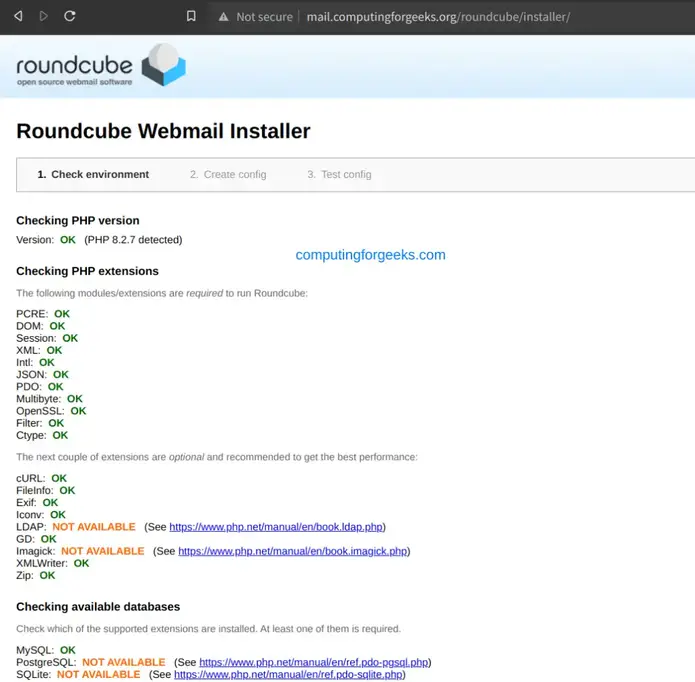
Once everything is okay in the environment check, proceed and configure the database creds.
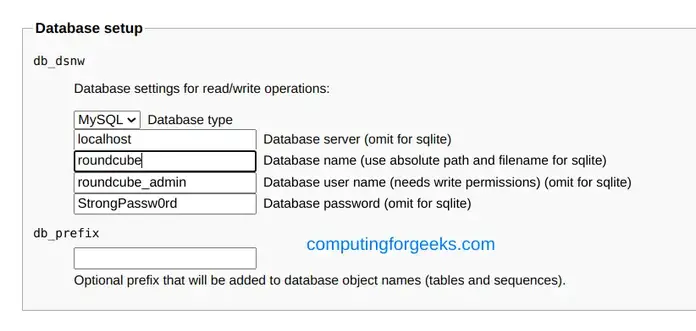
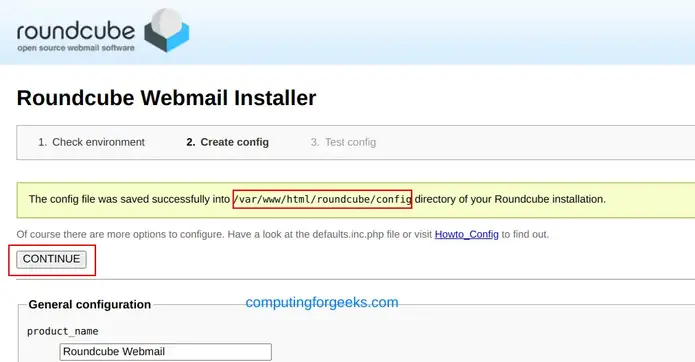
Once provided, scroll down and select create config. You will have it created as shown.
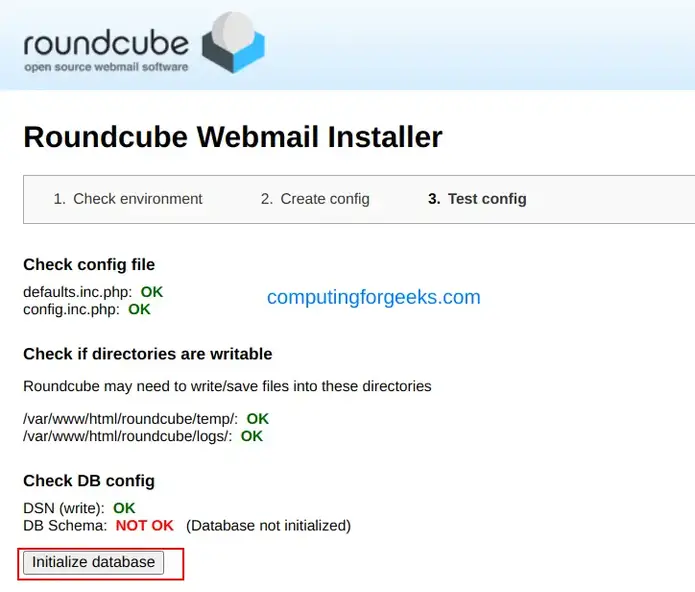
Proceed and initialize the database.
Now you need to set the correct permissions:
sudo chown www-data:www-data /var/www/html/roundcube/config/config.inc.phpNow modify the file to provide the config:
sudo vim /var/www/html/roundcube/config/config.inc.phpEnsure the below lines are added correctly:
// IMAP
.....
## If SSL is configured, (comment out the line below and use):
#$config['imap_host'] = 'localhost:143';  ##Use this if no SSL is configured
$config['default_host'] = 'ssl://mail.computingforgeeks.org';

## If SSL is confgured, use:
#$config['smtp_host'] = 'mail.csuhaj.eu';  ##Use this if no SSL is configured
$config['smtp_host'] = 'tls://mail.csuhaj.eu';

$config['support_url'] = '';

$config['default_port'] = 993;
#$config['default_port'] = 143; ##enable this if no SSL is enabled
$config['smtp_port'] = 587;
$config['smtp_user'] = '%u';
$config['smtp_pass'] = '%p';
$config['smtp_auth_type'] = 'LOGIN';
$config['debug_level'] = 1;
$config['smtp_debug'] = true;
$config['auto_create_user'] = true;
$config['plugins'] = array('virtuser_query');
$config['virtuser_query'] = "SELECT Email FROM postfix_accounts.accounts_table WHERE Email = '%u'"; ## Enables Roundcube to use authentication for virtual users for outgoing mail
Now you will have all the checks okay as shown.
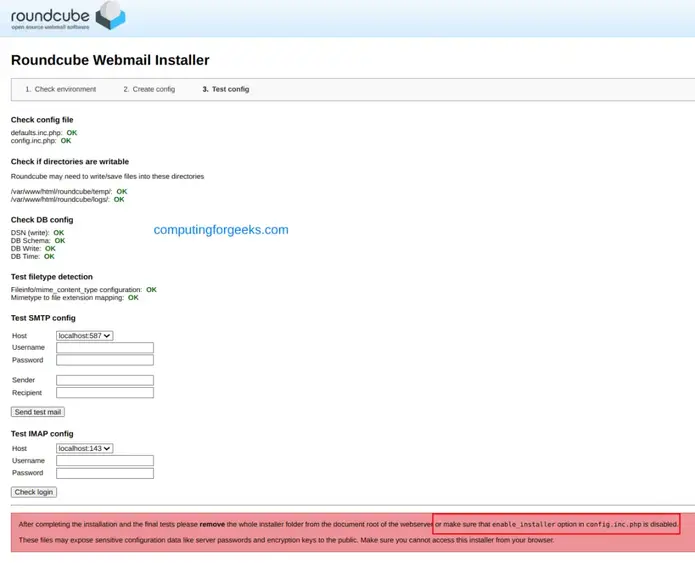
Remove the installer directory as notified.
7. Testing the Mail server
We can now test if the mail server is working correctly. First, there are ports we need to open on the firewall:
- HTTPS: 443
- IMAP: 143
- IMAP Secure: 993
- POP3: 110
- POP3 Secure: 995
- SMTP: 25
- SMTP Secure: 465
- MSA: 587
To achieve that, use the command:
sudo ufw allow 443/tcp
sudo ufw allow 25/tcp
sudo ufw allow 110/tcp
sudo ufw allow 143/tcp
sudo ufw allow 465/tcp
sudo ufw allow 587/tcp
sudo ufw allow 993/tcp
sudo ufw allow 995/tcp
Now verify if all is okay by logging in to http://domain_name/roundcube
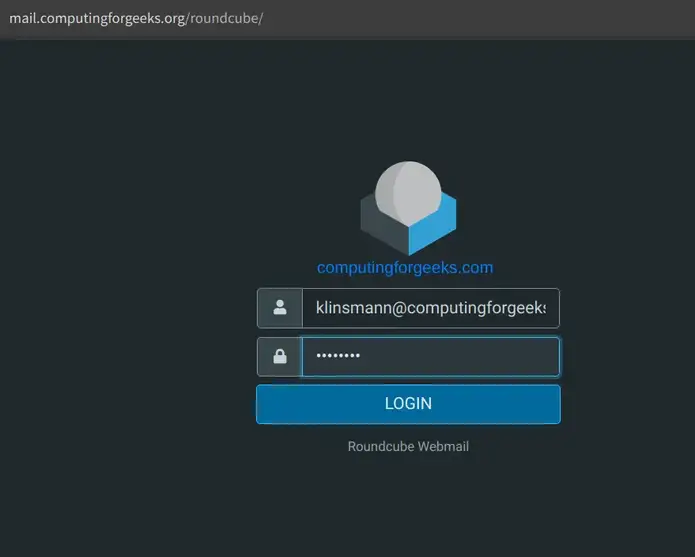
Once connected, you will see this.
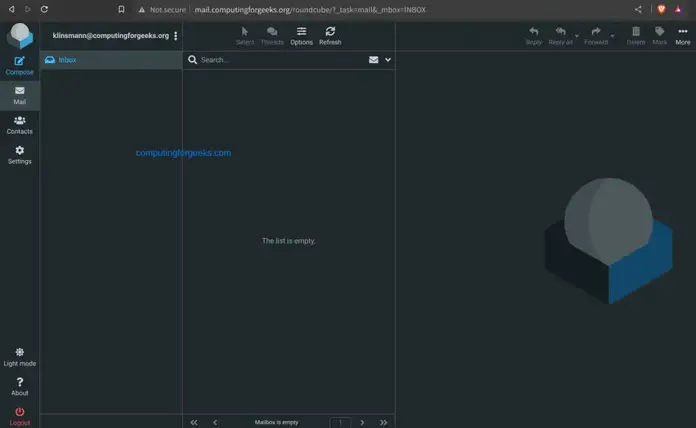
You can view the logs in case you have an error “connection to storage server failed” This issue is mainly caused by port 993 being disabled and invalid SSL certs. You can follow the logs with the command:
sudo tail -f /var/log/dovecot.logNow we can create a test email by clicking on compose
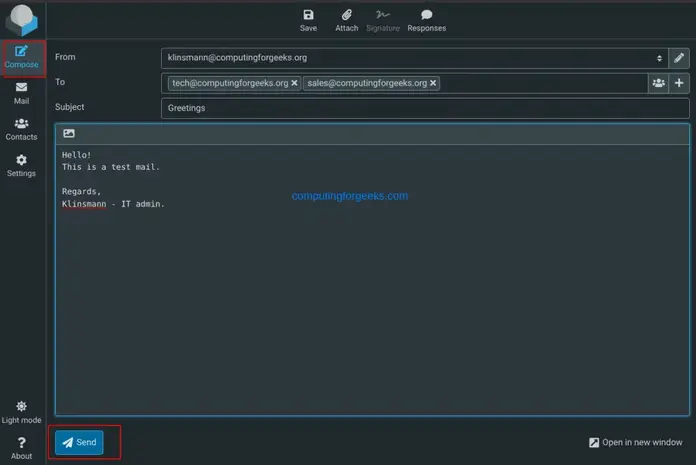
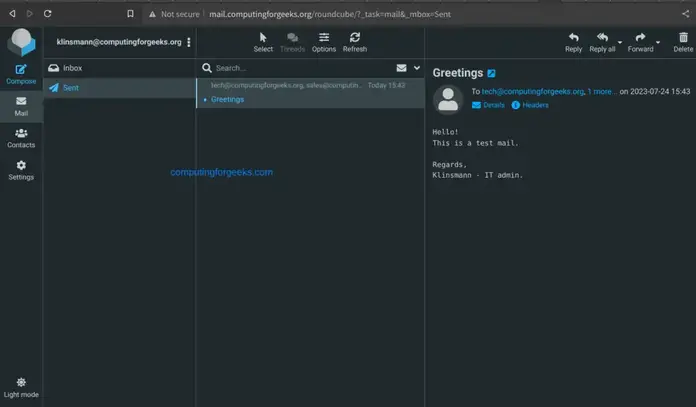
Once sent, the message will appear in the sent box.
On the other side, the recipient will have the mail as shown.
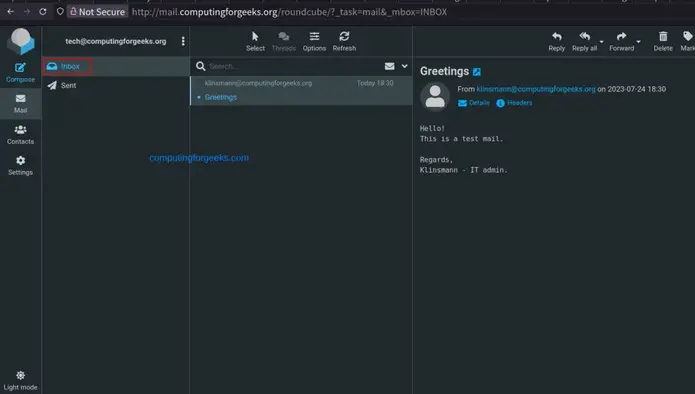
Verdict
That marks the end of this guide on how to deploy Mail Server on Debian 12 with Postfix, Dovecot, MySQL, and RoundCube. You now have a self-hosted email solution working. I hope this was significant.
Vélemény, hozzászólás?